Accounts
FCTF manages different types of accounts to facilitate the platform, including Teams, Users, and Roles.
Teams
In FCTF, all participants will need to be a member of a team before being able to access the CTF challenges.
Similar to users, Teams are centrally provisioned and managed by platform Administrators (typically via bulk CSV import). Once a team is established and users are assigned, participants compete under the unified banner of their assigned team.
Management Interface
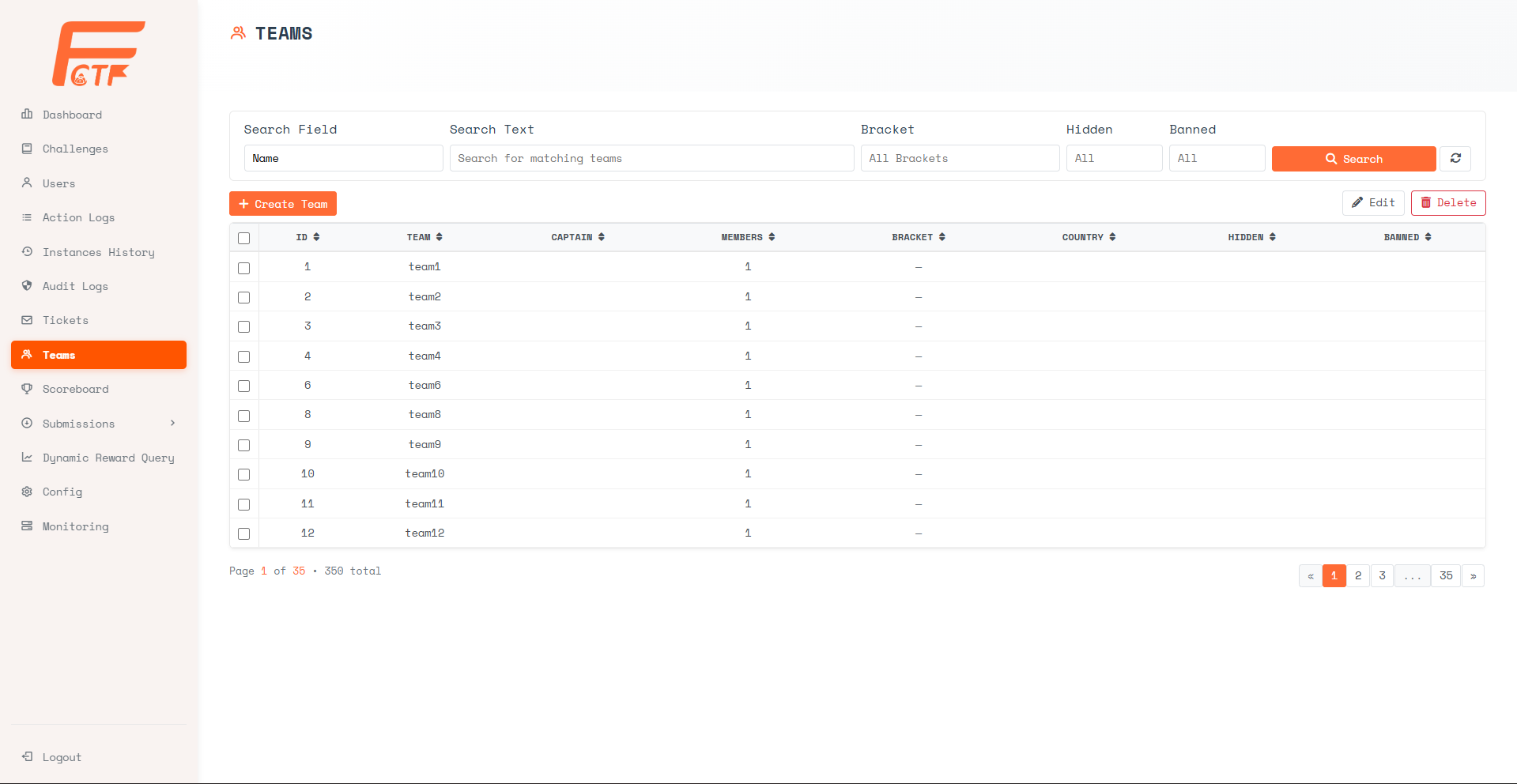
The Admin panel provides a comprehensive management view where you can oversee all platform teams. From this top-level dashboard, you can:
- Filtering and Search: Quickly search teams and filter the list by brackets, ban status, and hidden visibility.
- Access & Status Control: Manually dictate hidden flags or ban status directly from the management interface.
- Bulk Operations: Bulk import teams using CSV files directly from the Config tab.
Team Details
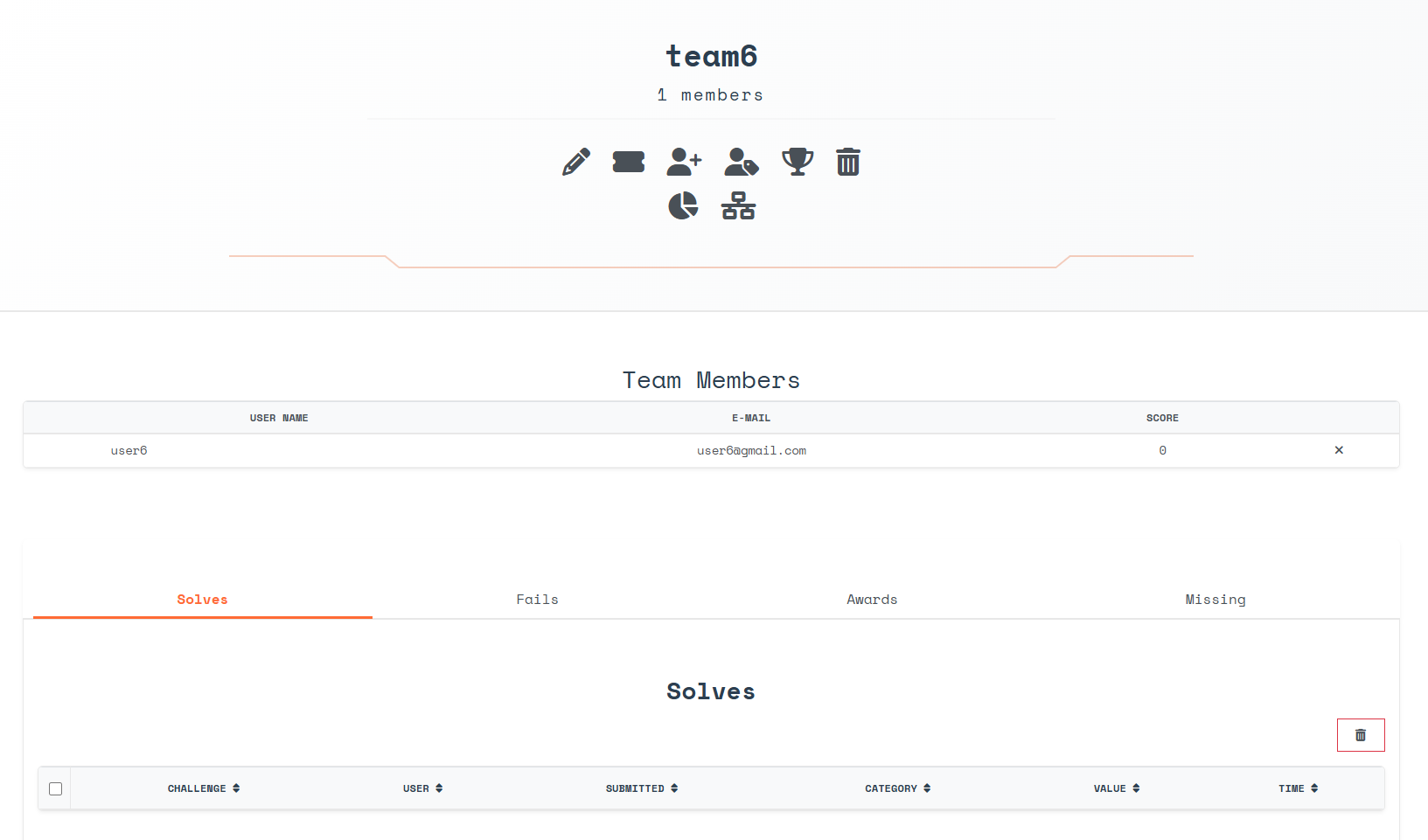 Clicking into a specific team brings up the detail view, which allows you to deeply inspect their activities:
- Performance Overview: Analyze team activity including solves, fails, awards, score, and placement.
- Missing Challenges Tracking: Explicitly pinpoint missing challenges the team hasn't completed yet.
- IP Address Tracking: View a comprehensive log of IP addresses used by team members.
- Member Management: Inspect individual team members, seamlessly add new users to the team, or remove existing members directly from the interface.
- Administrative Actions: Change the designated Team Captain or manually grant bonus points/awards directly from the team's profile.
- Profile Management: Administrators have full capability to overwrite any core team profile information (Team Name, Email, Password, Affiliation, Country) directly from this view.
Properties
All teams have a set of properties.
- Team Name - The team's unique name identifier
- Email - The team's organizational email address
- Password - The team password for authenticating into the team context
- Website - A website, if any, associated with the team profile
- Affiliation - An affiliation, if any, representing the team's organization
- Country - A country representing the team's origin
Some properties can only be directly edited and assigned by an admin in the Admin Panel:
- Bracket - A specific division or grouping the team is assigned to for customized scoreboards.
- Captain - The designated leader of the team, utilized for team administration and contact.
- Hidden - Hidden teams do not appear in the scoreboard and are not visible on any public interface. Their solves are not shown in solve counts, scores are not counted in statistics, and their profiles cannot be directly browsed to.
- Banned - Banned teams cannot access the site in any capacity. Instead of the actual page, they receive an error page stating that they were banned. Keep in mind that banning is an account level ban. It is not an IP address or hardware based ban.
Users
Users cannot self-register on the platform. All individual accounts must be explicitly provisioned by an administrator and marked as verified before they can log in and access the challenges.
Once an administrator creates the account (either manually or via mass CSV import), the user receives their credentials. They can then log in to manage their personal profile, track their own solves, and participate as part of their team.
Management Interface
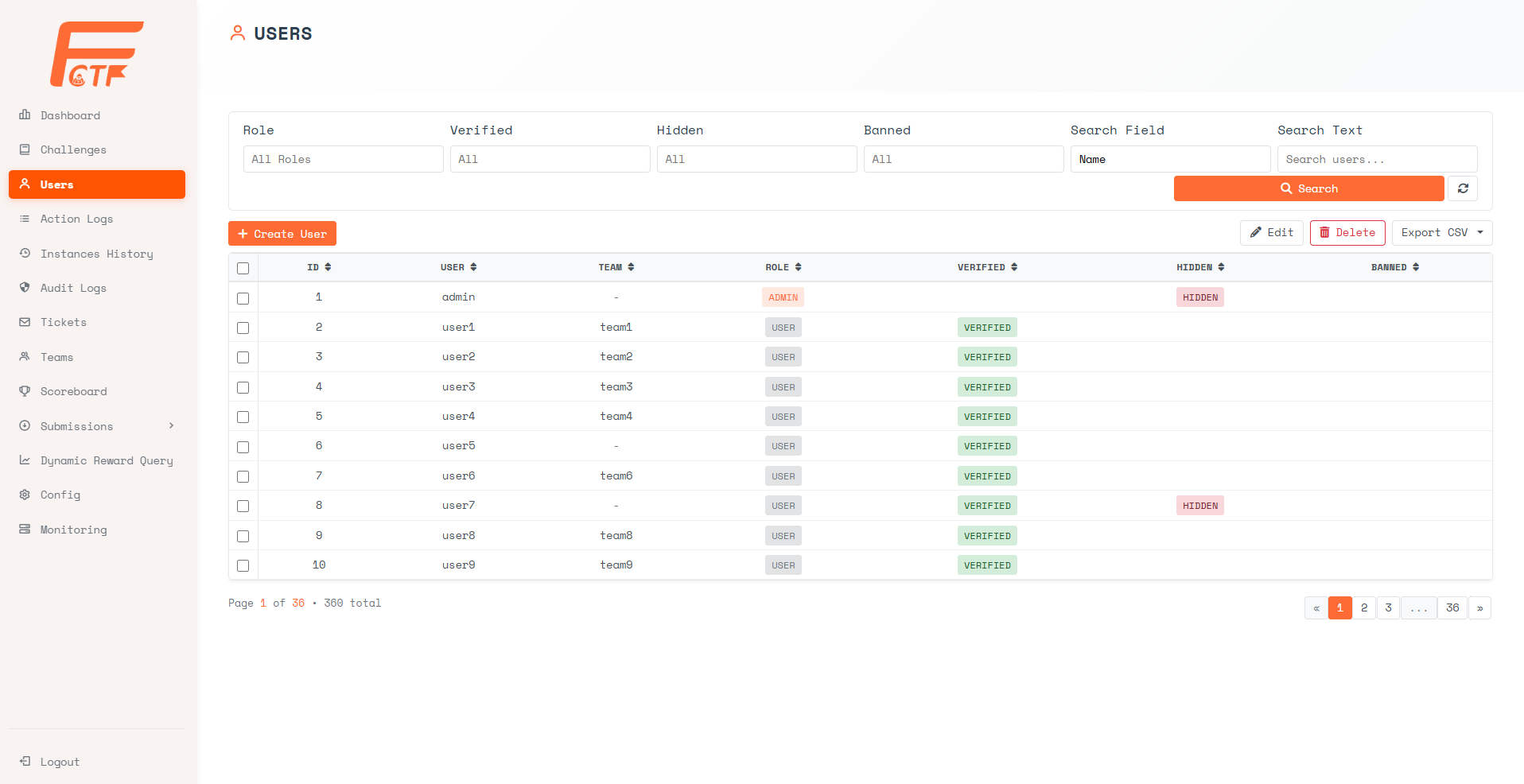
The Users panel gives administrators full transparency over all registered individual accounts. From the main list view, you can:
- Advanced Filtering: Filter participants by assigned roles (Admin, User, Challenge Writer, Jury), email verification status, visibility flags, or trace usage by searching IP addresses.
- Role Modifications: Instantly grant or revoke privileges, elevating a standard user to an Admin, Jury, or Challenge Writer.
- Account Status Control: Toggle "Hidden" or "Banned" status, and manually verify email addresses from the control panel.
User Details
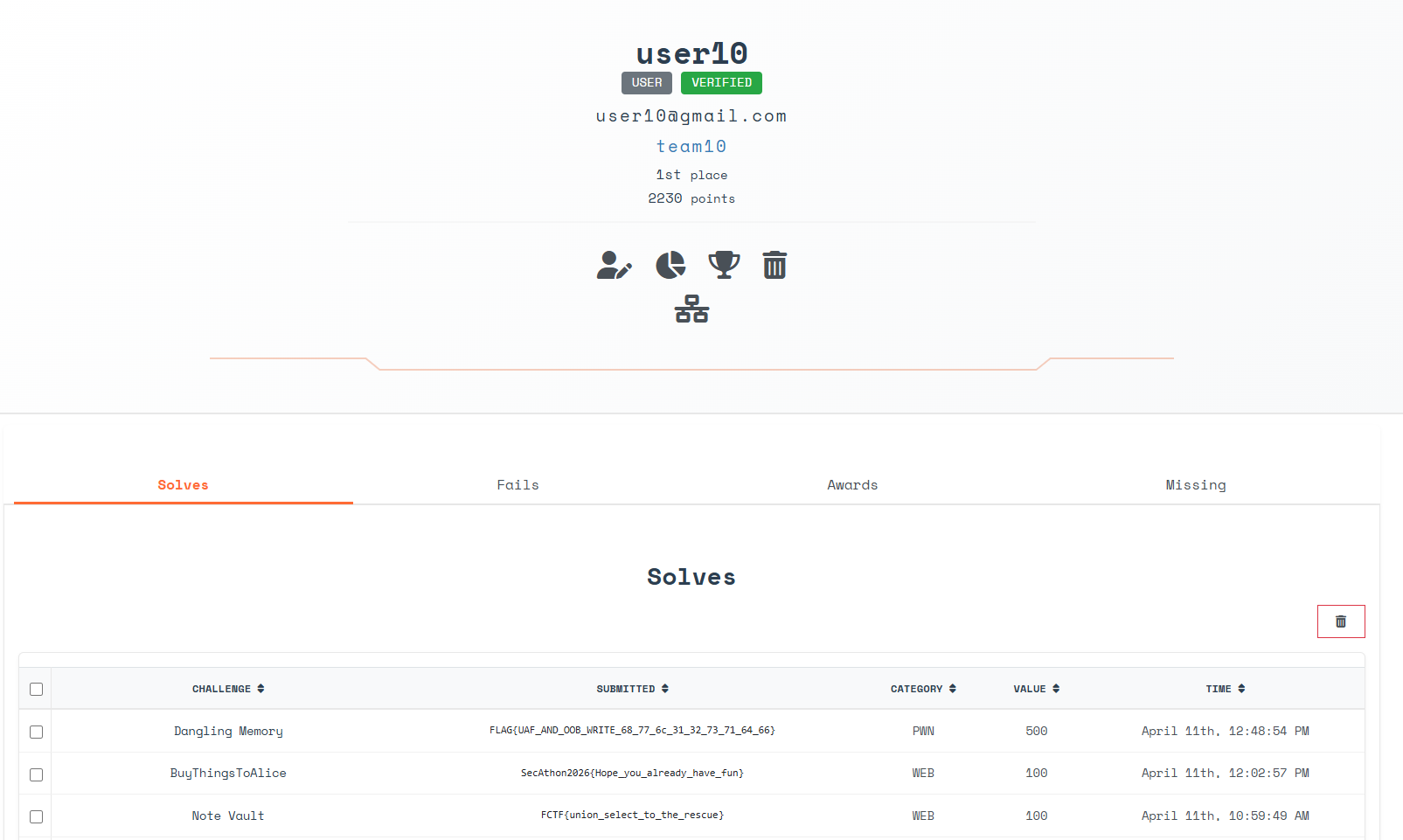 Clicking into a specific user opens their detail interface, offering deep insights into a single user's progression:
- Detailed Activity Auditing: Access a drill-down view showing a user's full history of submission logs (solves and fails), awards, and missing challenges.
- IP Address Tracking: Review all IP addresses they have utilized on the platform to trace irregular activity.
- Performance Overview: Analyze a single user's submission accuracy, score progression, and placement.
- Awarding System: Manually issue custom awards, bonus points, or administer penalties strictly to the user over the dashboard.
- Profile Management: Maintain complete administrative control to edit any basic profile details of the user (Name, Email, Password, Affiliation, etc.) for recovery or organizational compliance.
Bulk User Provisioning (CSV Import)
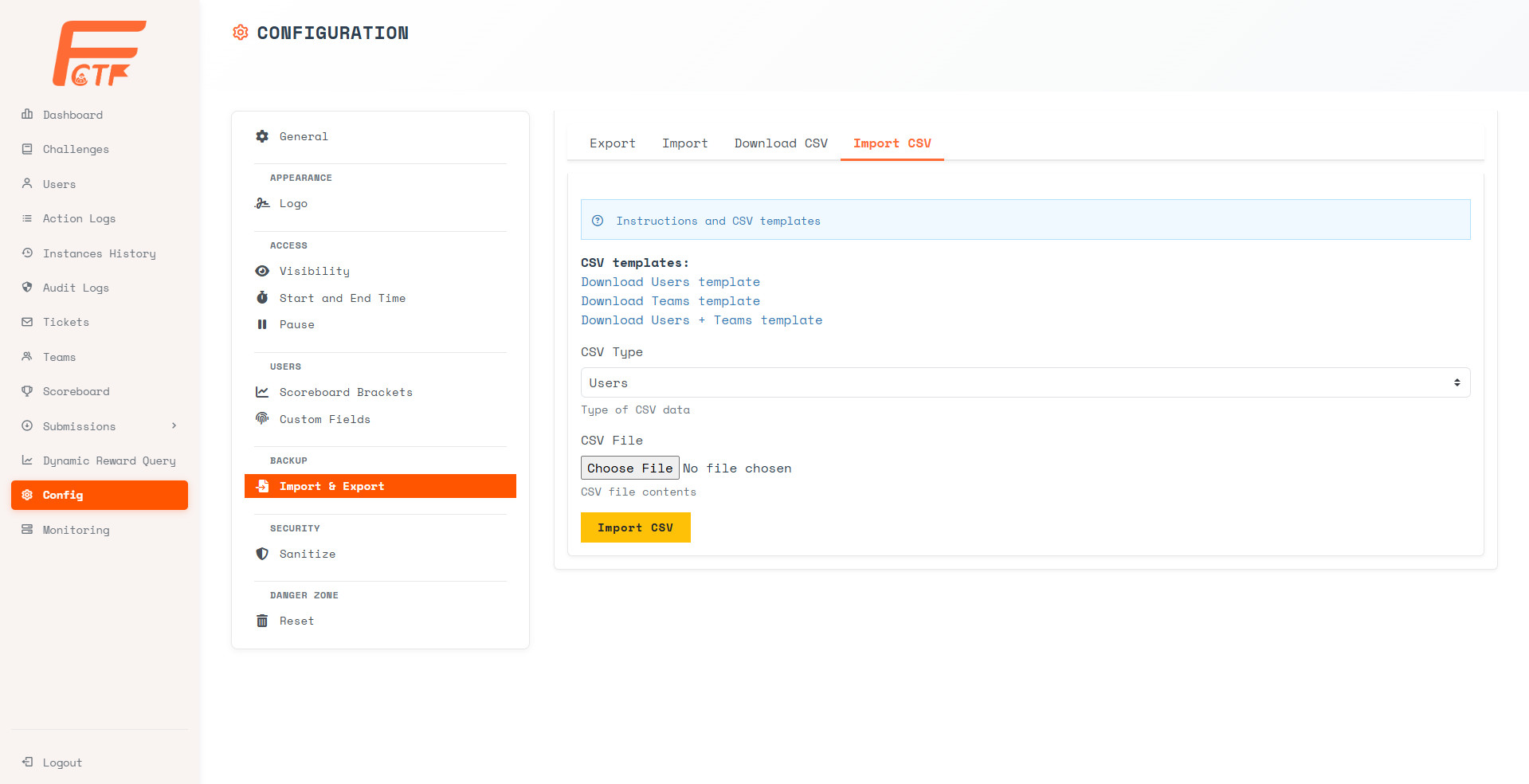 When managing large events, administrators can use the Config tab to import a comprehensive list of users in a single CSV payload, seamlessly mass-importing users (and optionally assigning teams) in one operation.
Properties
All users have a set of properties.
- User Name - The user's name identifier
- Email - The user's email address used for logging in and account recovery
- Password - The user password for logging into the platform
- Website - A website, if any, that the user may set in their profile
- Affiliation - An affiliation, if any, that the user may set in their profile
- Country - A country, if any, that the user may set in their profile
- Language - The preferred interface language that the user may select
Some properties can only be directly edited and assigned by an admin in the Admin Panel:
- Role (Type) - Dictates the permission level of the account (Admin, Jury, Challenge Writer, User).
- Team Binding - The strict mapping linking the individual user to their parent Team.
- Hidden - Hidden users do not appear in the scoreboard and are not visible on any public interface. Their solves are not shown in solve counts, scores are not counted in statistics, and their profiles cannot be directly browsed to.
- Banned - Banned users cannot access the site in any capacity. Instead of the actual page, they receive an error page stating that they were banned. Keep in mind that banning is an account level ban. It is not an IP address or hardware based ban.
- Verified - A flag indicating whether the user has successfully verified their email address.
- Bracket - A specific division or grouping (e.g., student vs. professional) the user is assigned to for customized scoreboards.
Roles
Accounts in the FCTF system are assigned specific roles (polymorphic types) that dictate their permissions and capabilities across the platform.
The system defines the following roles:
- User - The standard participant role. Users can navigate the platform, view challenges, deploy instances, submit flags, buy hints, and appear on the public scoreboard.
- Admin - The administrator role with full superuser privileges. Admins have access to the Admin Panel to configure CTF settings, manage user/team accounts, create and monitor challenges, assign awards, and oversee all platform data.
- Challenge Writer - A specialized authoring role for content creators. These accounts have privileges focused on creating challenges, modifying
ChallengeVersionconfigurations, managing container deployments, and testing without requiring full system-wide administrative access. - Jury - A moderator or judge role. Juries have elevated access to monitor participant activities (like tracking
ActionLogsandChallengeStartTracking), review submissions, ensure competition fairness, and arbitrate disputes.