Challenge Operations
This document provides a comprehensive guide to managing challenges on the FCTF platform. It covers everything from creation and deployment configuration to metadata management, live monitoring, and previewing.
The objective of this guide is to ensure Admins and Challenge Writers can release clear, fair, and technically stable content with high observability and recoverability.
Creating a New Challenge
The challenge creation process is divided into an initial metadata step followed by configuration options.
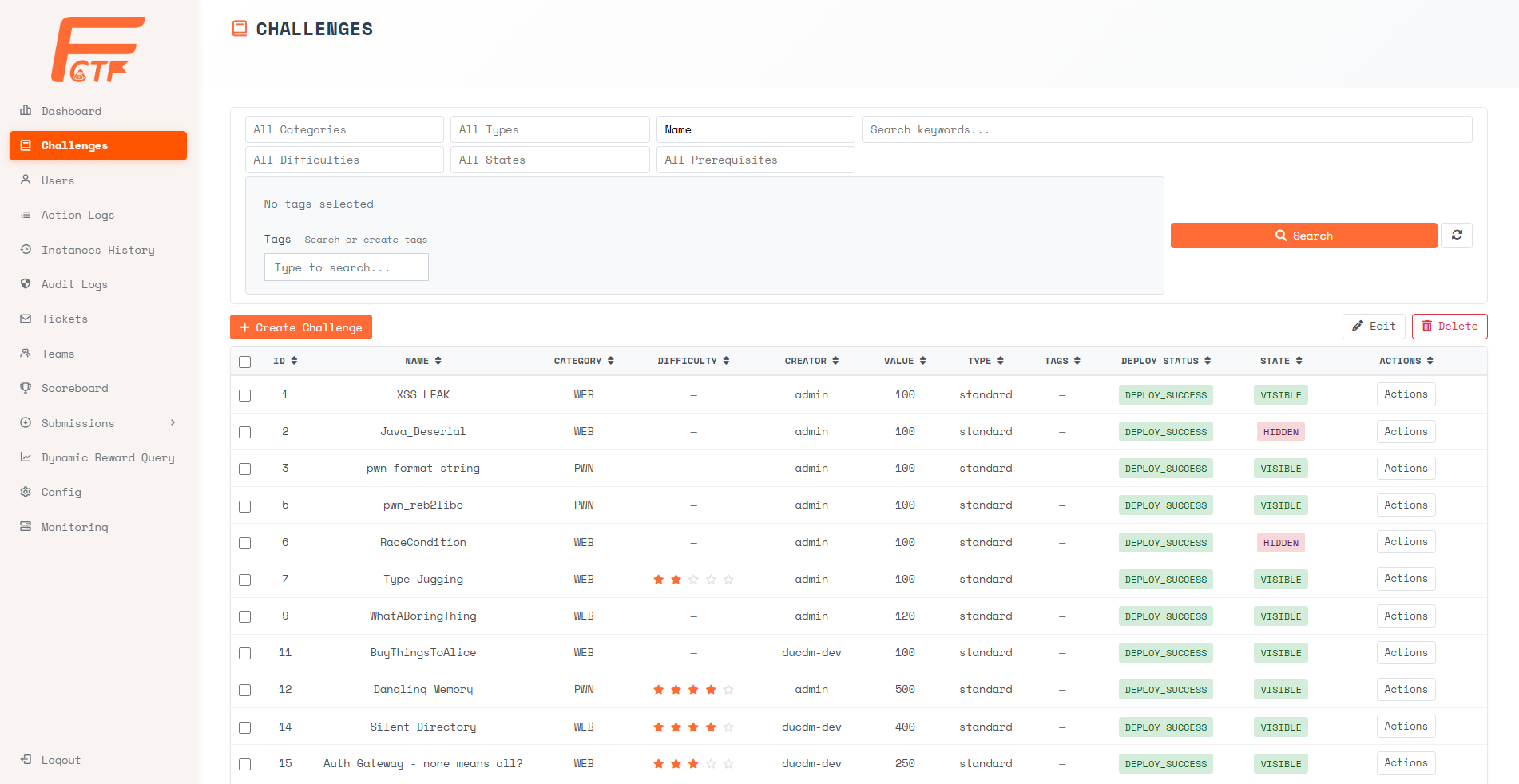
Step 1: Initiate Creation
From the Manage Challenges page, click the [+ Create Challenge] button.
Step 2: Select Type and Define Metadata
The Create Challenge interface will appear. First, select the appropriate challenge type.
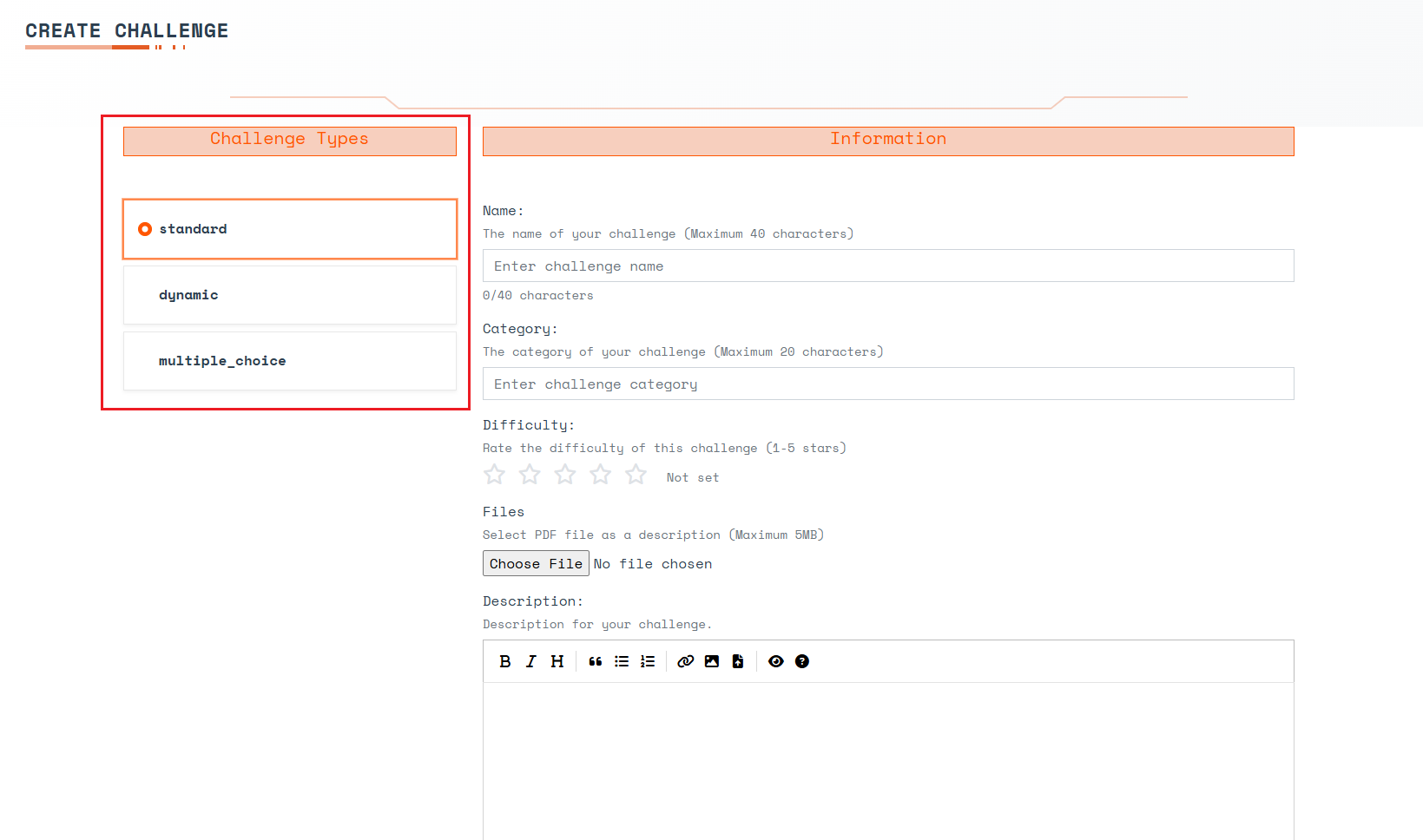
Challenge Types:
- Standard - The point value remains fixed regardless of how many teams solve it.
- Dynamic - The point value decays (decreases) as more teams solve the challenge. The more teams that solve it, the fewer points the next solving team receives.
- Multiple Choice - A quiz-style question where the contestant selects one correct answer from a list.
Common Information:
- Name (Required) - The title of the challenge.
- Category (Required) - The classification of the challenge (e.g., Web, Pwn, Crypto).
- Difficulty - A visual 1-5 star rating to indicate complexity. Check with the jury for calibration.
- Files - The problem statement artifact (PDF up to 5MB recommended). PDF files are automatically rendered as the problem description on the contestant UI, while other files are displayed as downloadable attachments.
- Description - Additional markdown description of the challenge.
- Time Limit (minutes) - The maximum time a contestant has to solve a deployed challenge instance. Once the timer expires, the instance will automatically stop.
- Max Attempts - The maximum number of flag submissions allowed. Set to
0for unlimited. - Submission Cooldown (seconds) - The minimum enforced wait time between two submission attempts. Set to
0for no cooldown. - Value (Required) - The point value of the challenge.
Dynamic Challenge Configuration:
- Initial Value - The starting (maximum) point value.
- Decay Function - The mathematical function determining point reduction:
- Linear: Points decrease by a flat, even amount per solve.
- Logarithmic: Points decrease slowly at first, then drop heavily for later solvers.
- Decay - The decay parameter used within the chosen function.
- Minimum Value - The floor score. The challenge value will never drop below this number.
Multiple Choice Configuration: Input choices directly in the description using the following syntax:
* () Choice 1
* () Choice 2
* () Choice 3
Contestants will see these as selectable UI radio buttons. They must copy the correct text (e.g., Choice 1) and submit it as the flag.
Step 3: Click Create
Once all foundational details are entered, click the [Create] button at the bottom of the form.
Step 4: Configure Options and Deployment
After creation, the options dialogue will automatically open.

- Flag - Enter the flag string and toggle whether checking should be case-sensitive or case-insensitive (default is a static flag).
- Setup Deploy - Enable if this challenge requires a live runtime instance to be provisioned on the cluster.
- Deploy Files - Additional file attachments that can be distributed to contestants.
- State - Toggle to
Visibleto expose it to contestants, orHiddento keep it private while testing. - [Finish] - Click finish to save options.
Deployment Configuration
When Setup Deploy is enabled, the interface dynamically expands to expose critical container and resource inputs. The top section of the popup covers networking and resource limits:

- Expose Port (Required) - The specific port the Docker container listens on, which will be exposed to contestants via the Gateway.
- Connection Protocol - The protocol contestants will use to connect to the instance (e.g., HTTP).
- CPU Limit (mCPU) - The absolute maximum CPU the challenge pod is allowed to use.
- CPU Request (mCPU) - The minimum CPU requested for scheduling the pod on a given cluster node.
- Memory Limit (Mi) - The absolute maximum RAM the pod is allowed to use before facing OutOfMemory termination.
- Memory Request (Mi) - The minimum RAM requested for initial scheduling.
Scrolling further down the dialogue reveals advanced security configurations and behavior toggles:

- Use gVisor - Run the pod within the gVisor sandbox. gVisor is an application kernel written in Go that provides a strong isolation boundary between the container and the host OS. By intercepting application system calls and acting as a guest kernel, it severely restricts what a compromised container can do to the host node. This is highly recommended for binary exploitation (Pwn) challenges or whenever untrusted contestant code is executed.
- Harden Container - Apply strict security hardening constraints directly to the Kubernetes Pod. When enabled, this automatically deploys the container using restricted Pod Security Standards. It enforces a read-only root filesystem (preventing malicious modifications to the base OS layer), drops all Linux capabilities to prevent privilege escalation, forces the container to execute as an unprivileged non-root user (UID 1000), and functionally mounts
/tmpas an isolated in-memory volume for temporary writes. To ensure a custom challenge image works with these restrictions, authors must strictly follow the build rules outlined in the Hardened Docker Guidelines. - Max Deploy Count - The maximum number of times a single contestant can start/deploy this challenge. Set to
0for unlimited. - Shared Instance - When enabled, the system provisions one shared instance for all contestants on the platform instead of isolated per-user instances.
- Deploy Files (Required) - A zip archive containing the source code and
Dockerfilenecessary to build the instance.
Challenge Detail Management
Following creation, you are redirected to the Challenge Detail page.
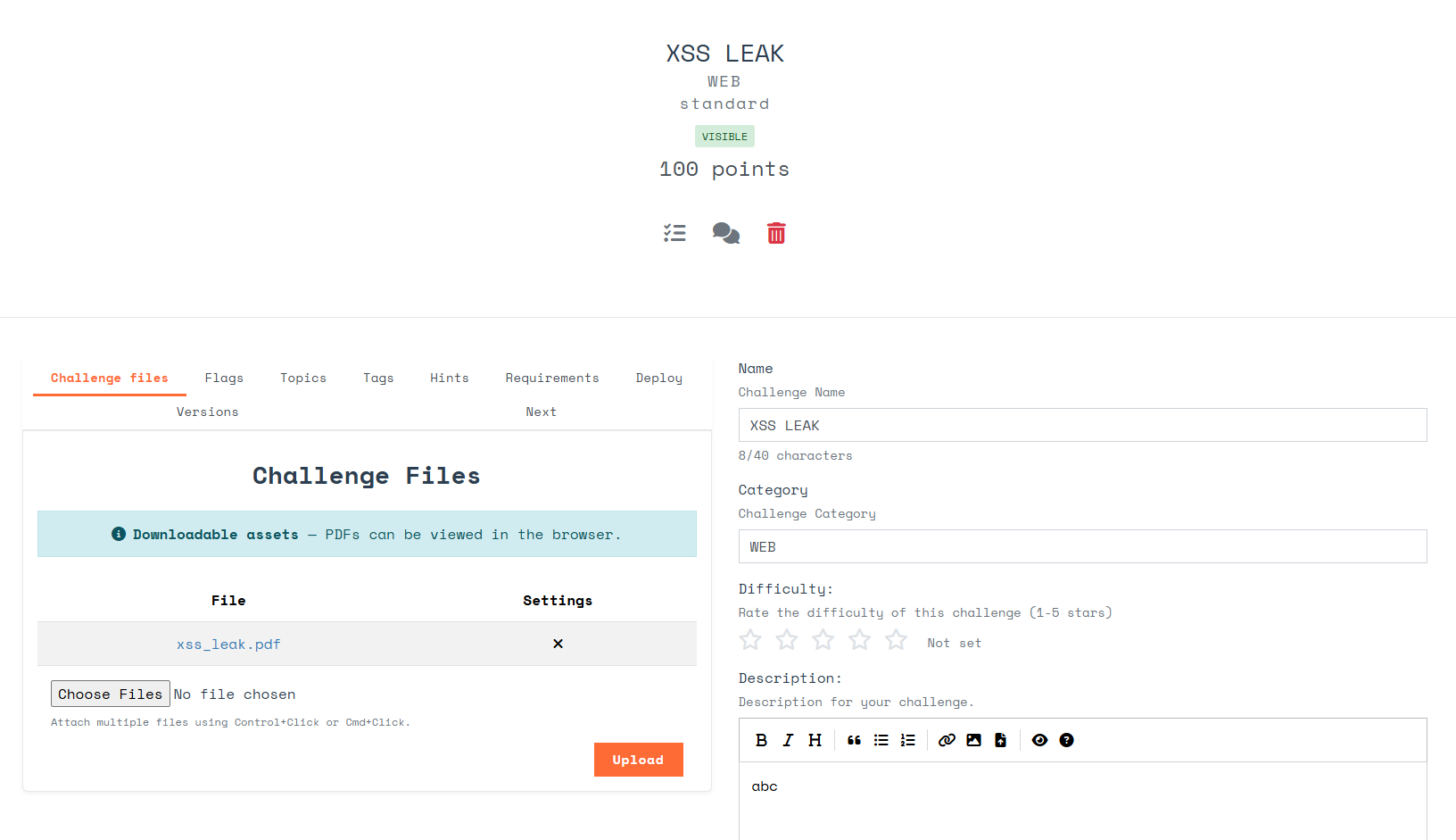
Deployment Status The top of the detail screen displays a visual progress bar reflecting the current deployment status. Once the deployment finishes, it will log the latest successful deployment timestamp.
The Detail page features multiple tabs to manage the holistic challenge lifecycle:
- Challenge Files - Manage public files. As stated during creation, PDF files auto-render inside the contestant UI, while other formats appear as download links.

- Flags - Manage authorized flags. A challenge can hold multiple flags; a solve is granted if a submission matches any listed flag.
- Static flag: Exact string comparison.
- Regex flag: Validates the flag string format using Regular Expressions. For example,
flag{(\d+)}ensures the flag cleanly contains only numbers within the brackets.

- Topics - Attach high-level topics to the challenge (it can belong to multiple).
- Tags - Attach specific searchable tags to categorize the challenge.
- Hints - Create and manage hints. Hints contain a Cost (points deducted from the contestant when unlocked) and can enforce prerequisite requirements (e.g., Hint 1 must be bought before Hint 2 becomes available).
- Requirements - Configure prerequisites (challenges that must be solved before this one opens). Behavior options for unmet requirements:
- Hidden: Fully hides the challenge from the UI. The contestant is unaware it exists.
- Anonymized: The challenge appears in the UI but is visibly locked.
- Deploy - Modify the runtime settings established during Step 4. The interface here uses the same configuration properties as the creation dialogue, split into basic settings and advanced resource/security limits.
- Versions - Displays a history of image versions automatically captured after every successful deployment. The currently utilized image is flagged as
[ACTIVE]. You can select an[OLD]version and press the [Roll back] button to revert the challenge to that specific snapshot.

- Next - Suggest the logical next challenge to direct the contestant toward after they solve the current one. Select
(- -)to disable the suggestion.
Deployment History & Logs
To audit runtime instantiations or troubleshoot failed builds:
- Locate the challenge on the Manage Challenges screen, click [Actions], and then select [History].
- A deployment history list will appear. Click [View Details] on any entry to view the raw execution logs generated by the Argo workflow deployment process.
Preview Feature (Testing)
Preview Challenge is a tailored utility allowing Admins and Challenge Writers to realistically test the problem statement, flag accuracy, and instance build behavior without utilizing a dummy contestant account. It guarantees testing will not alter the public scoreboard or exhaust resources allocated to active competitors.
- Navigate to the Manage Challenges page, click [Actions], and select [Preview].
- The UI will simulate the exact contestant challenge interface.
- When testing deployment instances, a dialog displays the realtime deployment status. Once complete, it presents a success message and an access token.
- The Admin accesses the instance identically to a contestant utilizing that token. Once the preview is initiated, the Admin can also visit the Monitoring dashboard to view the running preview instance's exact state and copy the challenge token from there to test access.
Shared Instances & Monitoring
Starting Shared Instances
For challenges where the Shared Instance toggle is enabled, contestants cannot self-provision the challenge runtime. An Admin must manually activate the environment.
- From the Manage Challenges list, click [Actions] on the relevant shared challenge, and select [Start].

- Once the shared instance initializes successfully, connection details will globally appear for all contestants viewing the challenge. The duration this instance remains active is directly controlled by the Time Limit field configured in the challenge settings.
Instance Monitoring Dashboard
The centralized Monitoring screen offers real-time oversight of all provisioned environments across the cluster.
The dashboard displays essential data fields:
- Challenge Name
- Team Name - The team possessing the instance. This displays
Unknown Teamfor Shared Instances, andPreview Modefor admin testing instances. - Category - The technical category.
- Status - The active lifecycle state (e.g., Running, Deleting).
- Challenge Token - The unique authentication token currently gating runtime entry.
- Time finished - The scheduled time the runtime boundary will automatically terminate.
Administrative Actions in Monitoring
Admins can issue direct controls against any active challenge instance:
- Pod Logs - Streams the raw
stdout/stderrstdout straight from the contestant's pod container. Highly useful for debugging crashes. - Request Logs - Streams the proxy access logs, tracking exact ingress traffic and interactions the contestant is broadcasting to the challenge.
- Stop - Forcibly and immediately terminates the running instance and purges its namespace.