Platform Governance
This section describes how administrators configure platform-wide policies, manage data import/export operations, and apply security controls through the Configuration page.
Configuration Page
The Config page is the central administrative hub for defining event-wide operating parameters. It is organized into logical sections accessible via the left-hand navigation panel.
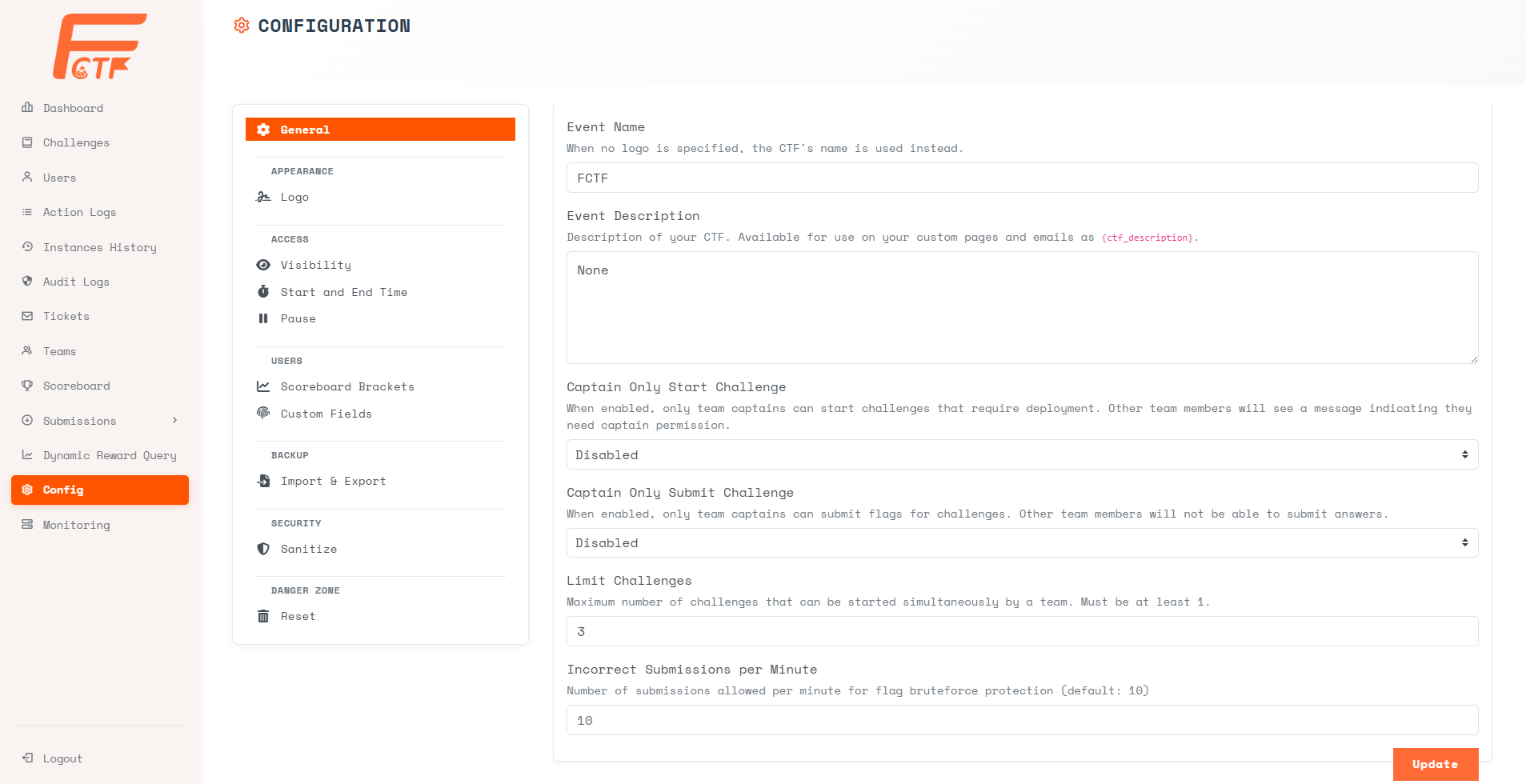
General
- Event Name - Define the competition name shown across the platform.
- Event Description - Define reusable event text available in pages and emails.
- Captain Only Start Challenge - Restrict challenge runtime start/deploy actions to team captains.
- Captain Only Submit Challenge - Restrict flag submission actions to team captains.
- Limit Challenges - Set the maximum number of challenge runtimes a team can run simultaneously.
- Incorrect Submissions per Minute - Configure brute-force protection by limiting incorrect submissions per minute.
Appearance
- Logo - Upload a custom event logo that will be displayed across the platform UI and public-facing pages.
Access
- Visibility - Configure contestant-facing visibility controls:
- Score Visibility - Control whether scoreboard data is
Public,Private, or fullyHidden. - Allow contestants to view other brackets - Available when Score Visibility is
Private; controls whether contestants can switch to other bracket standings. - Challenge Difficulty Visibility - Control whether challenge difficulty ratings are shown to contestants.
- Score Visibility - Control whether scoreboard data is
- Start, End, and Freeze Time - Define the competition schedule:
- Start Time - When challenge solving begins.
- End Time - When new solves stop.
- Freeze Time - When public ranking updates are frozen while solves continue to be recorded.
- Pause - Temporarily block submissions until unpaused. Challenge pages remain viewable.
Users
- Scoreboard Brackets - Define and manage bracket divisions (e.g., Student, Professional, Open) for segmented scoring and leaderboards.
- Custom Fields - Create custom metadata fields that are attached to user profiles (e.g., Student ID, Organization Unit).
Backup (Import & Export)
The Import & Export interface enables administrators to perform bulk data operations via CSV files.
Tabs:
- Export - Export platform data (users, teams, challenges, submissions) as a downloadable archive for backup or reporting.
- Import - Import previously exported data archives to restore or migrate platform state.
- Download CSV - Download pre-formatted CSV templates for Users, Teams, or Users + Teams to prepare bulk import files.
- Import CSV - Upload a completed CSV file to batch-create accounts.
CSV Import Workflow:
- Download the appropriate CSV template (Users, Teams, or Users + Teams).
- Populate the template with the required fields.
- Select the correct CSV Type from the dropdown.
- Choose the prepared CSV file using the file picker.
- Click [Import CSV] to execute the batch operation.
Always use the platform-provided CSV templates to ensure field ordering and encoding are compatible. Malformed files will be rejected during validation.
Security
- Sanitize - Purge potentially dangerous HTML or script content from user-generated fields (names, descriptions, etc.) across the platform database. Use this as a preventive measure against stored XSS attacks.
Danger Zone
- Reset - Open the reset workflow to wipe selected data scopes (
Accounts,Submissions,Challenges,Logs).Logsincludes both contestant action logs and admin audit logs.
Reset operations permanently destroy selected competition data. Always perform a full Export backup before executing a reset.