Support & Compliance
This section covers contestant support workflows, operational activity tracking, and administrative accountability mechanisms.
Tickets
The Tickets page serves as the centralized help desk for managing contestant-submitted support requests during a competition.
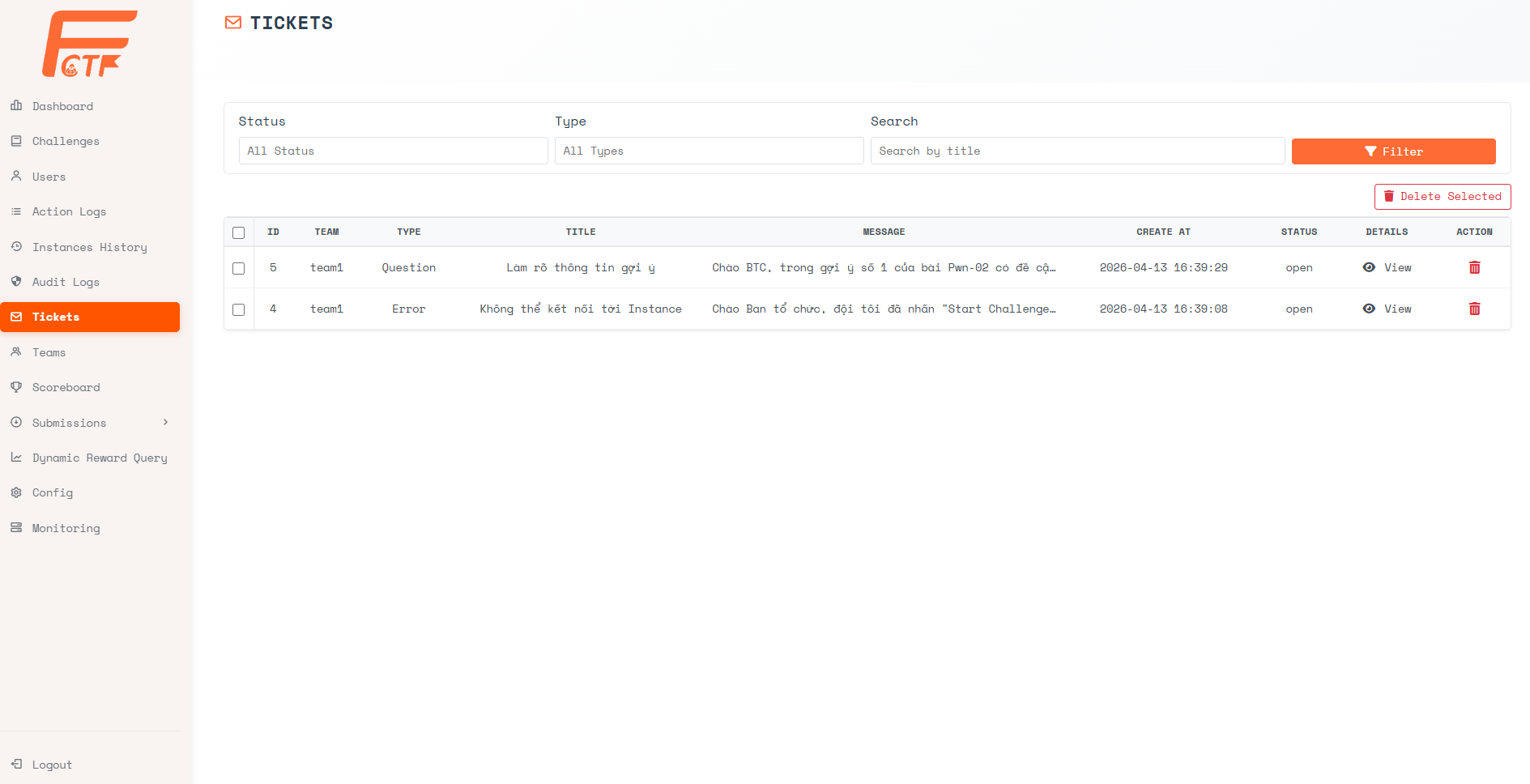
Filter Controls:
- Status - Filter by ticket state (e.g.,
Open,Closed, orAll Status). - Type - Filter by ticket category (e.g.,
Question,Error, orAll Types). - Search - Free-text search by ticket title.
Table Columns:
- ID - The unique ticket identifier.
- Team - The team that submitted the ticket.
- Type - The classification of the issue (
Questionfor general inquiries,Errorfor technical problems). - Title - A brief summary of the ticket subject provided by the contestant.
- Message - A preview of the ticket body content.
- Create At - The timestamp when the ticket was submitted.
- Status - The current state (
openorclosed). - Details - Click [View] to open the full ticket detail page.
- Action - Delete the ticket using the trash icon.
Bulk Operations:
- Select multiple tickets using the checkboxes and click [Delete Selected] to remove them in batch.
Ticket Response
When viewing a ticket's details, administrators can respond directly to the contestant through the built-in response interface.

Enter the response text in the Response field and click [Submit Response] to send the reply back to the contestant. The response will appear in the ticket conversation thread visible to the submitting team.
Action Logs
The Action Logs page records every significant contestant interaction with the platform, providing a comprehensive audit trail of user behavior throughout the competition.
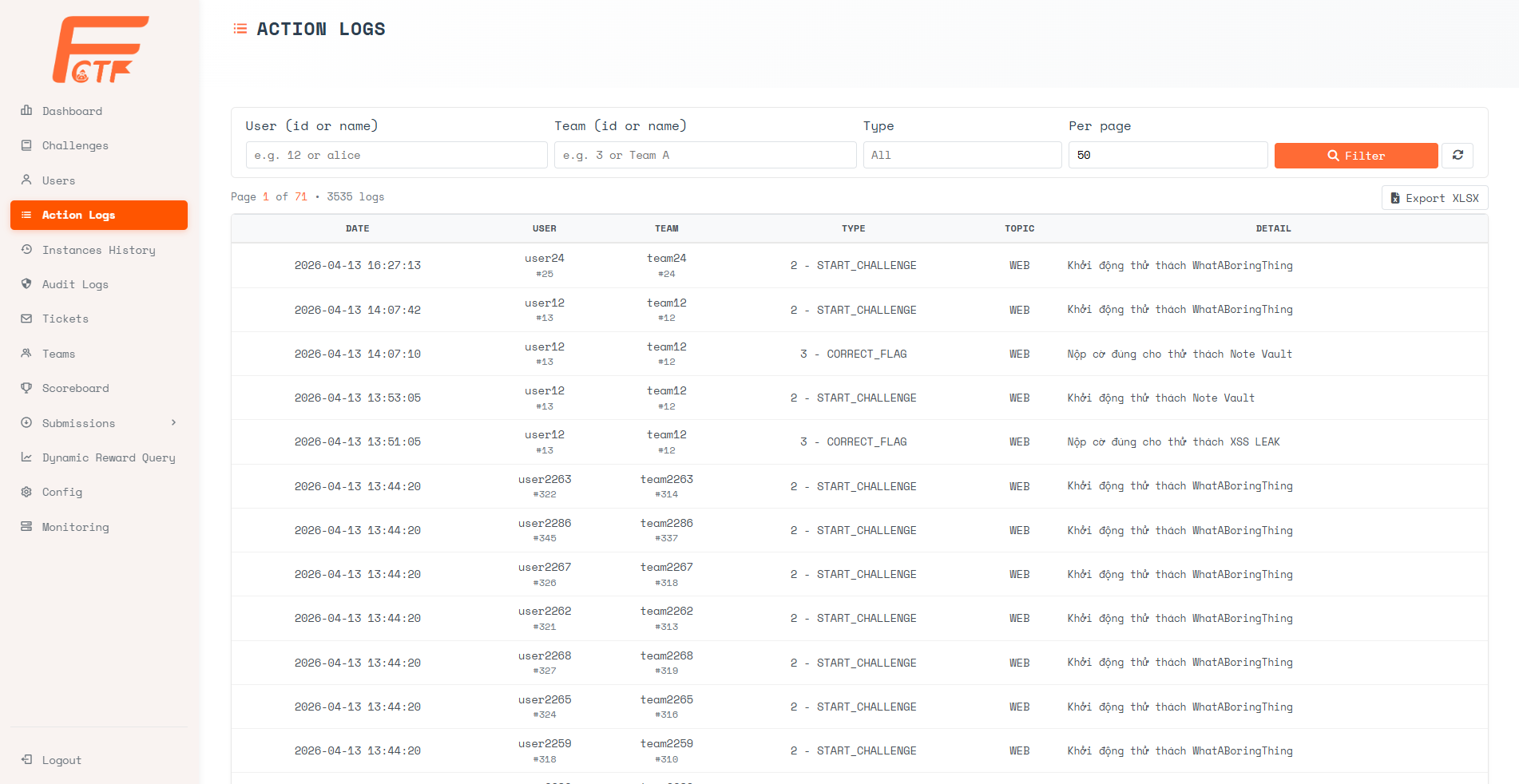
Filter Controls:
- User (id or name) - Filter by a specific user.
- Team (id or name) - Filter by a specific team.
- Type - Filter by action type (e.g.,
START_CHALLENGE,CORRECT_FLAG,STOP_CHALLENGE). - Per page - Configure pagination size.
Table Columns:
- Date - The precise timestamp of the action.
- User - The user who performed the action, with their internal ID.
- Team - The team context, with their internal ID.
- Type - The classified action type. Common types include:
2 - START_CHALLENGE- The contestant deployed a challenge instance.3 - CORRECT_FLAG- The contestant submitted a correct flag.- Other numeric codes map to additional platform events.
- Topic - The challenge category associated with the action.
- Detail - A human-readable description of the action performed.
Available Actions:
- Export XLSX - Download the complete action log dataset as an Excel file for offline forensic analysis or post-event reporting.
Combine Action Logs with the Instances History page to reconstruct a full timeline of contestant interactions, from instance deployment to flag submission.
Audit Logs
The Audit Logs page tracks privileged mutations performed by administrator-level roles (admin, jury, challenge_writer). This is the primary source of truth for reviewing who changed critical platform data and when.
Filter Controls:
- Actor (id or name) - Filter by a specific operator account.
- Role - Limit records to a role type (
admin,jury,challenge_writer). - Action - Filter by operation class (e.g., challenge update, user delete, config update, CTF reset).
- Target Type / Target ID - Narrow to a concrete object type and identifier.
- From / To - Datetime range filter for incident windows.
- Per page - Configure page size.
Table Columns:
- Timestamp - The exact time the action occurred.
- Actor - The account that executed the action, including role badge.
- Action - The normalized action label.
- Target - The impacted object type and identifier.
- IP - Source IP address.
- Changes - Diff viewer entrypoint for before/after state snapshots.
Available Actions:
- View - Open a structured before/after diff for the selected record.
- Export CSV - Export the filtered audit dataset for compliance reporting.