Contestant Guideline
This guide explains the core contestant workflow in FCTF:
- Solving challenges
- Managing running instances
- Creating and tracking support tickets
This page is written for contestants and team captains during live competition.
Part 1: Challenge Workflow
Step 1. Sign In
- Open the Contestant Portal URL provided by the organizer.
- Sign in with your assigned username and password.
- Confirm your team context after login (top-right profile area).
Step 2. Choose a Challenge
- Open
Challengesfrom the top navigation. - Select a category (for example Web or Pwn).
- Select a challenge to open its detail panel.
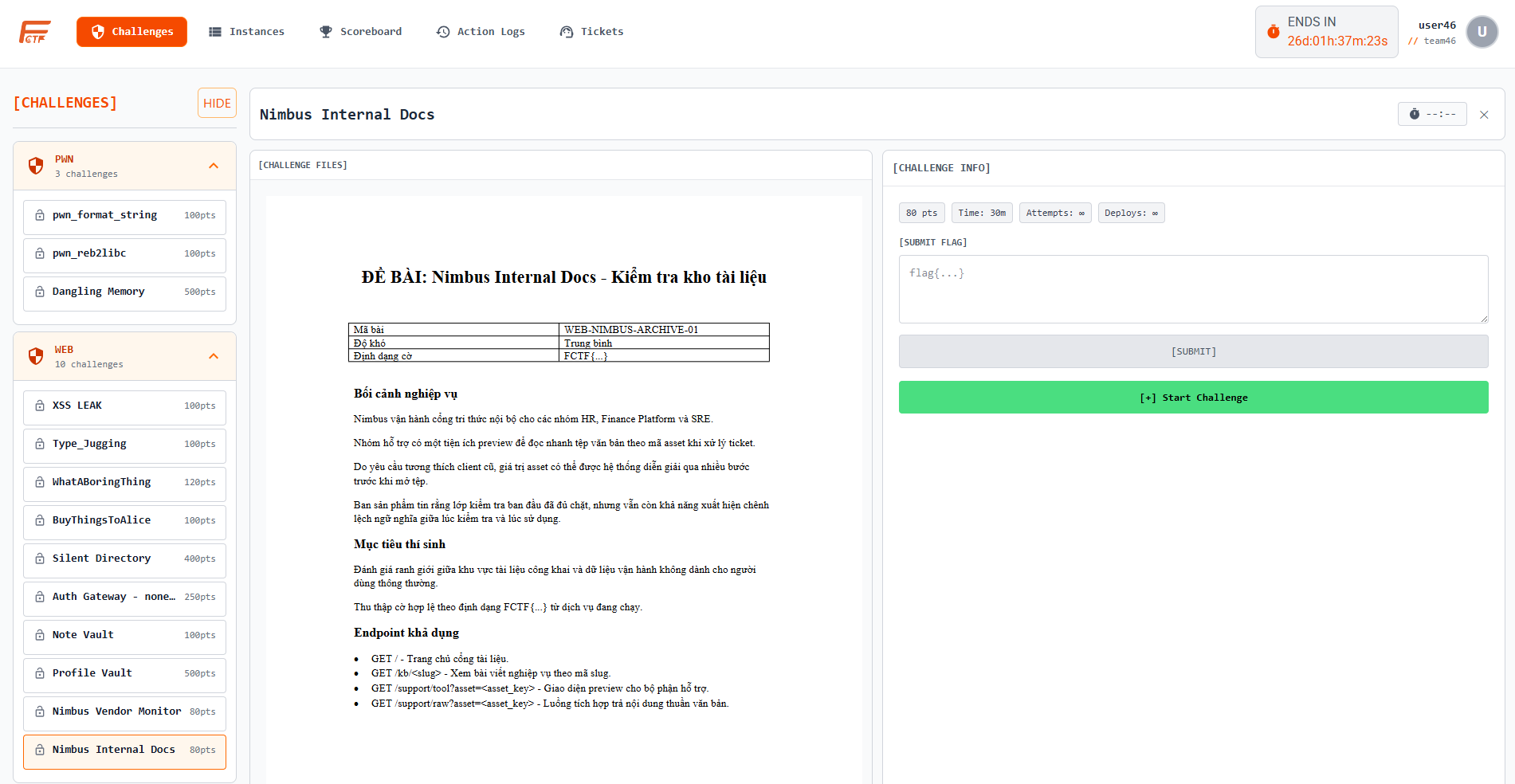
Step 3. Start (Deploy) a Challenge Instance
For deploy-required challenges, click [+] Start Challenge.
Important information shown in challenge detail:
pts: challenge point valueTime: countdown time limit after instance is readyAttempts: maximum allowed flag submissionsDeploys: current deploy count over max deploy count (for example0/1)
[ATTACHMENTS] contains downloadable challenge files. PDF statements are shown directly in the built-in viewer.
Step 4. Access the Challenge Runtime
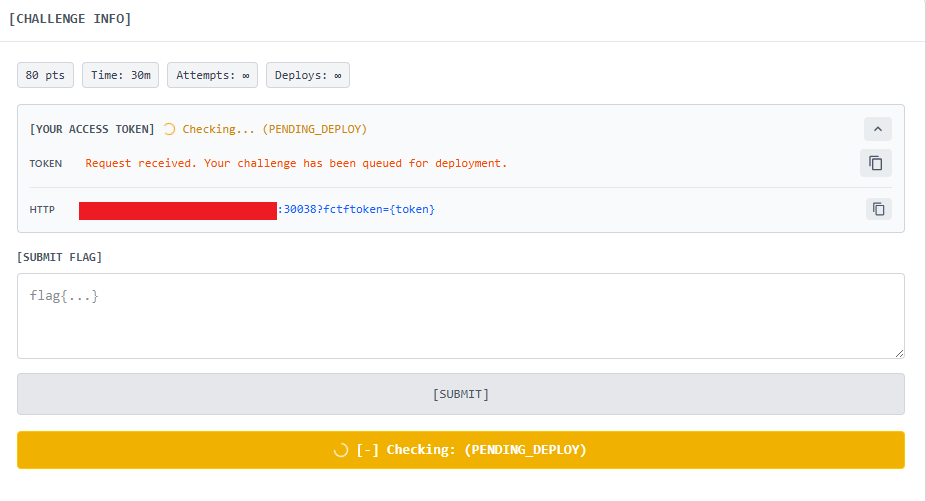
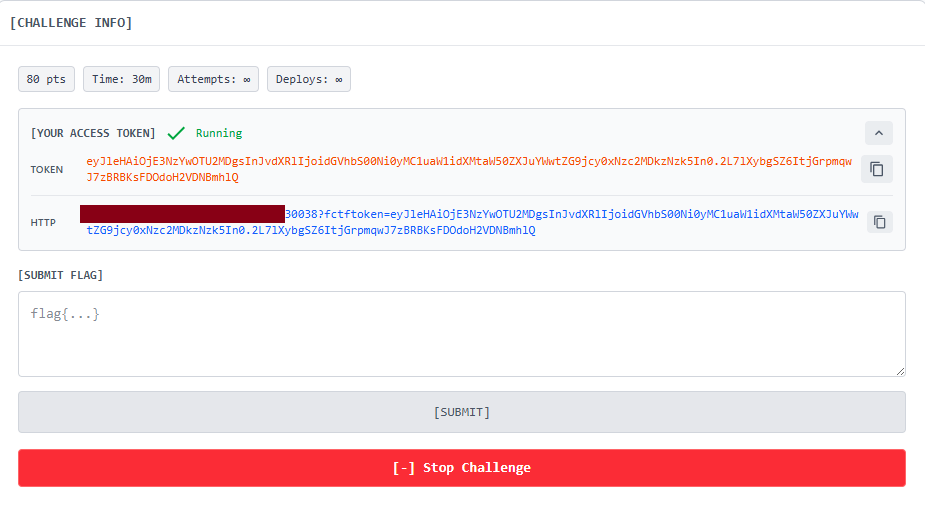
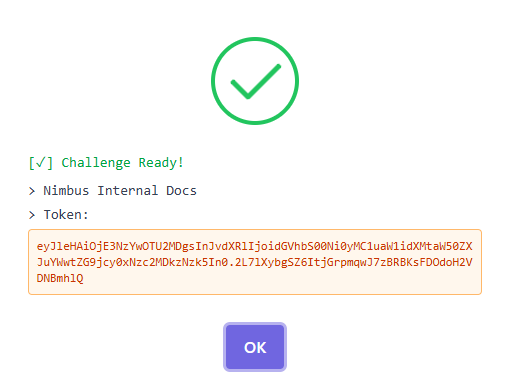
After deployment succeeds, the portal shows [YOUR ACCESS TOKEN] and protocol-specific access information.
4a) Access by HTTP
Use the format:
http://<gateway-host>:<http-port>?fctftoken=<YOUR_TOKEN>
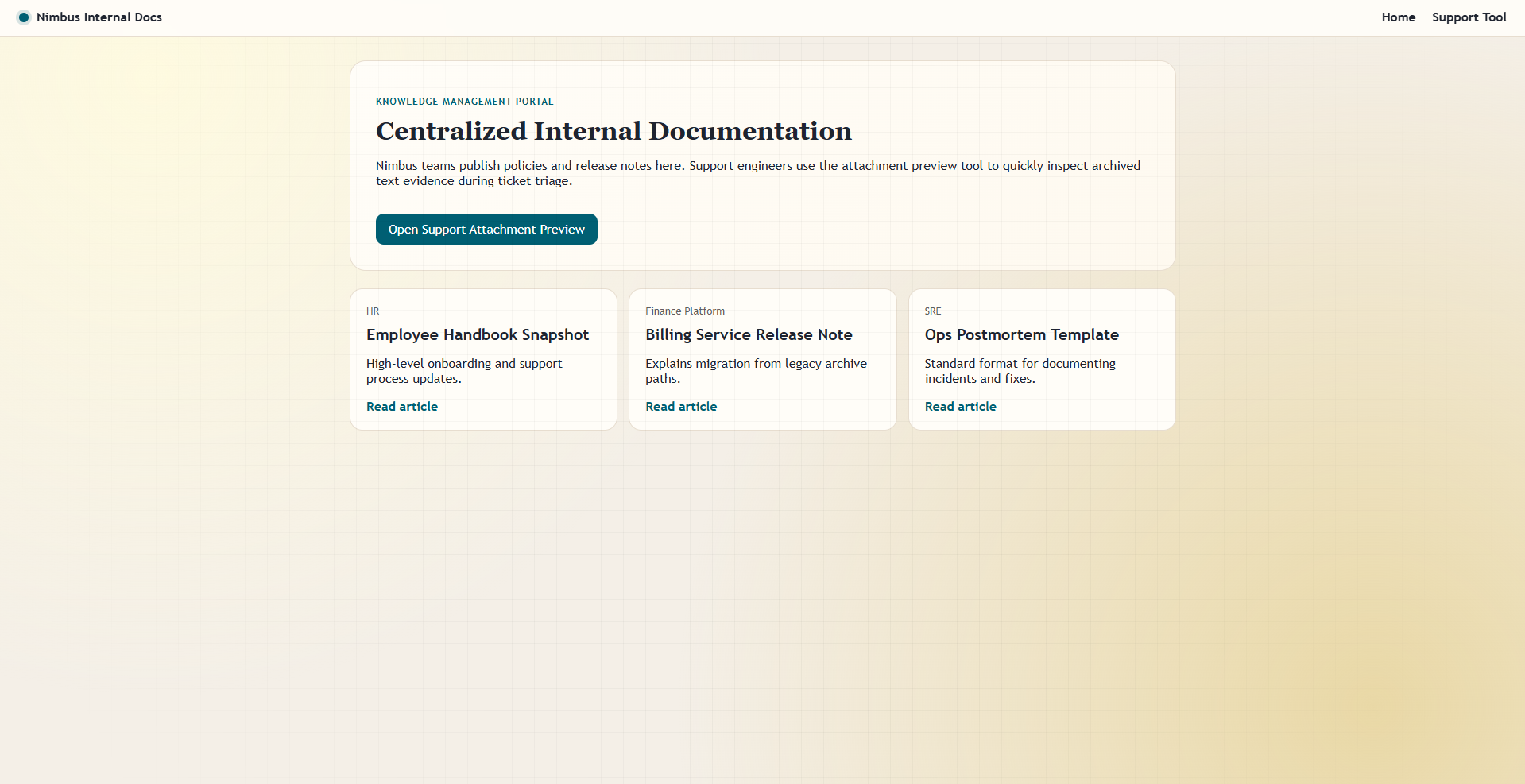
Example challenge target (web):
4b) Access by TCP (if protocol is TCP)
Use terminal access:
nc <gateway-host> <tcp-port>
When prompted, enter your token to authenticate.
Step 5. Submit Flag
- Enter your flag in
[SUBMIT FLAG]. - Click
[SUBMIT]. - Review verdict and continue:
correct: score awardedincorrect: attempts reduced and cooldown may applyalready_solved: no additional scoreratelimited: wait and retry later
Part 2: Manage Instances
Open Instances from the top navigation.
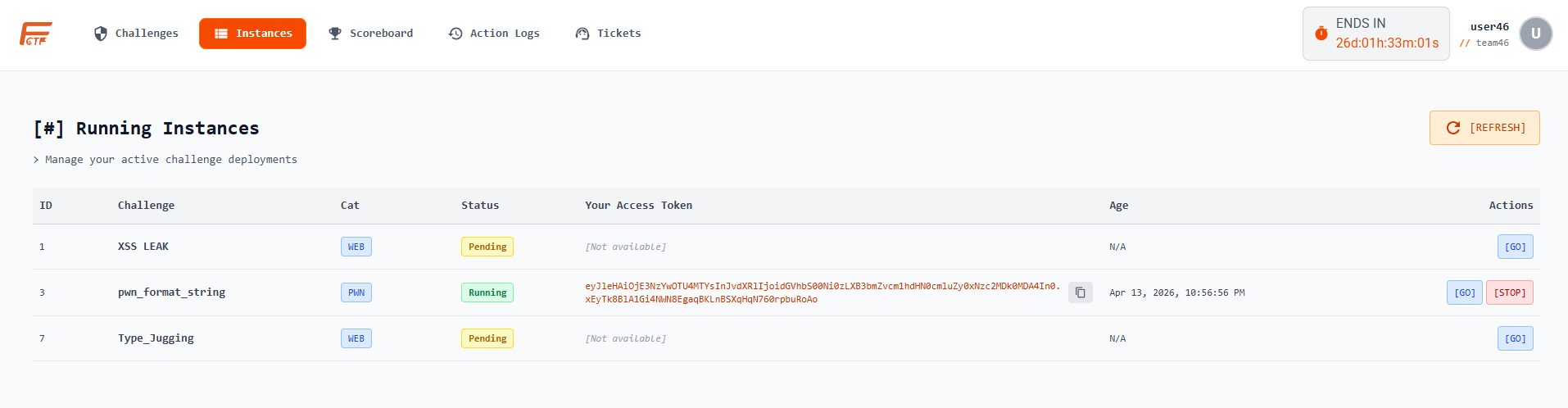
The table shows challenge instances in statuses such as:
PendingRunningDeletingor terminal cleanup states
Main actions:
[GO]: open challenge detail directly[STOP]: stop the running instance (confirmation required)[REFRESH]: reload current instance status from server
Part 3: Ticket Support (CRUD)
Step 1. View Ticket List
Open Tickets from navigation.
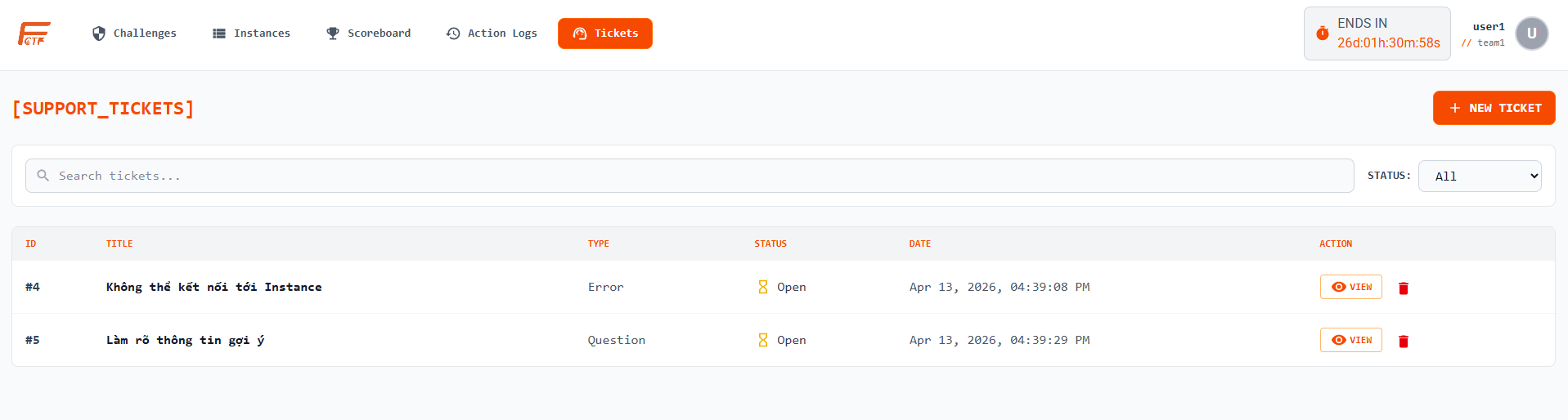
The ticket list includes:
- ID
- Title
- Type (
Question,Error,Inform) - Date
- Status (
OpenorClosed)
Step 2. Create a Ticket
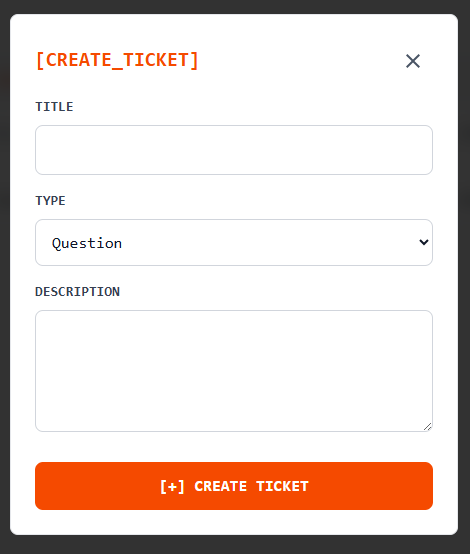
Click + NEW TICKET and complete:
Title: short and specific issue summaryType: issue categoryDescription: detailed problem context
Step 3. View Ticket Detail and Replies
From the list, click VIEW on a ticket row.
In detail view, contestants can review:
- Original title and description
- Ticket status
- Organizer reply (if available)
Step 4. Delete Ticket
Contestants can delete only eligible open tickets.
Safety rule:
- Tickets that are closed or already answered by organizers cannot be deleted.
Quick Best Practices
- Stop unused instances to free resources.
- Keep ticket descriptions reproducible and concise.
- Track cooldown and attempts before repeated submissions.
- Use action logs as evidence when reporting runtime issues.